Quickstart Guide: Using AI in Your IDE for R Programming
Leveling up: Beyond cut and paste from the browser
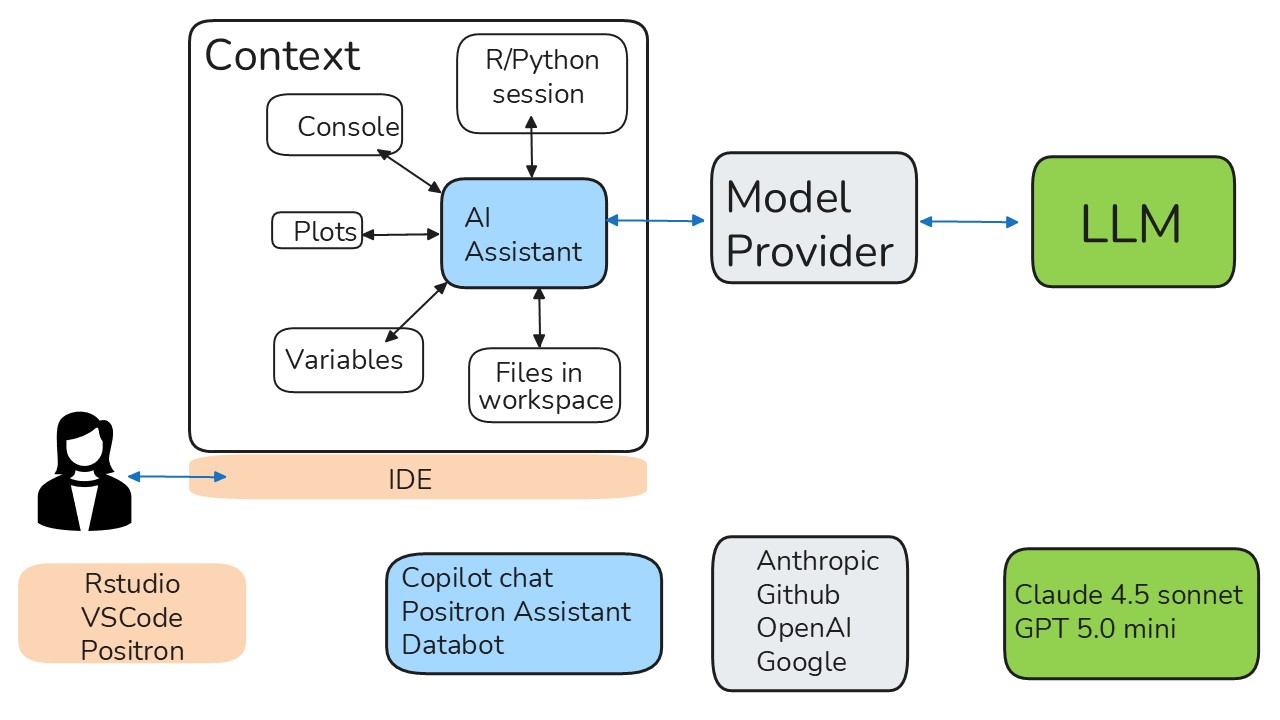
Understanding the anatomy of the workflow.
I’m overwhelmed already where should I start?
To jump right in, we’ll showcase just a few tools, but see the full instructions for more information on the different options available.
IDEs
If you are an R user, I recommend starting with RStudio and experimenting with typeaheads.
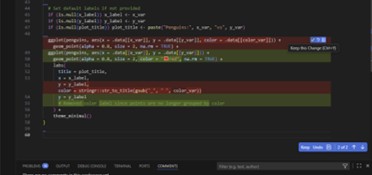
If you want to do more complicated code modifications than simple figure tweaks, I highly recommend you use Positron/ VS Code. The agent/edit modes of ‘Copilot chat’ (VS Code) or ‘Positron Assistant’ (Positron) interact directly with your files, offering code suggestions with a built-in editor that you can use to accept/reject suggestions and have them inserted right into your code. It’s a much more streamlined interface than cutting and pasting code into your browser and can do much more advanced work than typeaheads. As well, the LLMs can use files in your project as context to inform their suggestions.
Model Providers
- If you are affiliated with an academic institution, sign up for free Github Copilot Pro through GitHub Education as a student or educator. It can be a hassle and often takes a couple of tries to get them to accept your verification documentation, but is well worth the effort. Github Copilot will allow you to try out a variety of models (albeit with a somewhat smaller context window than some other providers, which may give you lower quality results).
AI Model
- To conserve tokens start with the free tier models and work your way up to more expensive models if things aren’t working. I currently find Claude Sonnet 4.5 is usually a good compromise between inept and expensive. There is a blog that fairly regularly does a bake-off, so check back there if you want the most current recommendations.
Software Setup is half the battle. Or maybe 3/4.
Once you have signed up for one (or more) of the accounts above, you then have to figure out how to get your computer to know that, not just you. If you are an R user, I recommend installing Positron (and enabling Positron Assistant) and/or VS Code (together with the Copilot extensions). Note there are GenAI tools that are only available in VS Code/Positron (not RStudio) so even if you prefer one of the more RStudio for everyday coding, consider trying out Positron or VS Code for more involved GenAI tasks. VS Code and Positron have a lot of overlapping AI functionality right now, though some tools are available in only one or the other.
To enable GitHub Copilot in RStudio follow the directions here (I have copied the relevant parts below)
- Navigate to Tools > Global Options > Copilot.
- Check the box to “Enable GitHub Copilot”.
- Download and install the Copilot Agent components.
- Click the “Sign In” button.
- In the “GitHub Copilot: Sign in” dialog, copy the Verification Code.
- Navigate to or click on the link to https://github.com/login/device, paste the Verification Code and click “Continue”.
- GitHub will request the necessary permissions for GitHub Copilot. To approve these permissions, click “Authorize GitHub Copilot Plugin”.
- After the permissions have been approved, your RStudio IDE will indicate the currently signed in user.
- Close the Global Options dialogue, open a source file (
.R,.py,.qmd, etc) and begin coding with Copilot!
To disable GitHub Copilot either:
- Navigate to Tools > Global Options > Copilot and uncheck “Enable GitHub Copilot”, or
- Use the Command Palette Cmd+Shift+P on Mac or Ctrl+Shift+P on Windows/Linux, search for “Enable GitHub Copilot” and then uncheck “Enable GitHub Copilot”.
If you haven’t installed Positron, you can download it here. Positron supports (1) code completion through Github Copilot (note to complete this step you must already registered for Github Pro and enabled Copilot); (2) sidebar/inline chat through Positron Assistant (setup instructions here) and (3) agentic exploratory data analysis through Databot (setup instructions here)
Demo: AI Pair Programming Easy Wins
Typeaheads
Typeaheads are a quick and easy way to get started with AI-assisted coding. As you type, suggestions will appear inline, allowing you to accept or reject them with a simple keystroke.
To accept a suggestion, press Tab. To ignore it, just keep typing.
While typeaheads can be accomplished in RStudio, the remaining demo tools can only be accessed using Positron or VS Code, usually using either the sidebar or inline chat.
Documentation
Figure out what’s in an entire repository/workspace
update the readme to explain the contents of each folder
Document the script that is open
Explain
explain what this code is doing
or
/explain
Use inline chat, highlighting the example code OR provide the entire script file as context.
Review/Fix
/fix
Provide the datafile as context here.
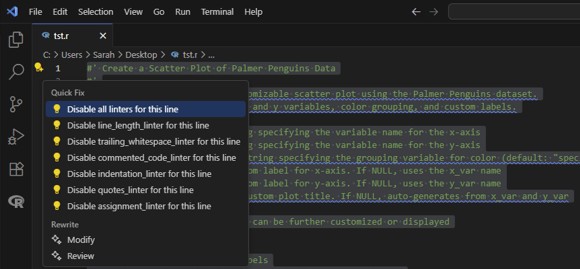
or highlight existing code and use the Github Copilot ‘Code Review’ function (VS Code) or Positron Assistant’s “Rewrite->Review” option.
You can also request a code review on github. Using this method, github will (asynchronously) review your code and create a pull request for you to review and merge if you agree with the suggestions. Read more about this method here.
Script -> function
One application that AI excels at is converting repetitive code into functions.
For example you could use the plotting code we used in the Browser-based exercise and have AI turn it into a function that can be run on different datasets. A prompt to achieve this:
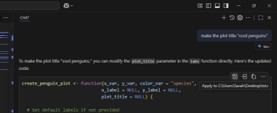
using this example code, write a function where the input data frame, x, y, color, size and title variables can be modified using function arguments
Unit tests
Unit tests are an important way to ensure your functions are doing what they are supposed to be doing. AI can help you write comprehensive unit tests. You should ensure that the outputs are in fact correct, but AI can save you a lot of boring typing here in getting them set up.
write unit tests for this function using testthat. Include tests for edge cases, invalid inputs, and expected outputs.
QC
AI isn’t great at running QC on large datasets (it doesn’t typically read in huge files). But it can help you write code to qc your own data. An example prompt might look something like this (providing the datafile as context)
write R code to run quality control and visualize these data. Include checks for spelling errors, duplicates or missing data and repeating values.
Before experimenting with Databot, please read the Posit blog post Databot is not a flotation device, and review the Danger Zone for important considerations when using agentic AI tools. Databot – when running unsupervised – is an example of an agent that could be vulnerable to a prompt injection attack, or delete files on your computer. It also can churn through tokens pretty quickly. Consider the potential consequences before clicking that ‘always allow’ button.
Agentic QC
Databot is Positron’s experimental tool for exploratory data analysis. Based on a user’s prompt, it can iteratively write and execute code, analyze the output, and propose next steps. Databot is accessed via the Command Palette Cmd+Shift+P on Mac or Ctrl+Shift+P on Windows/Linux and typing the keyword ‘Databot’. You can read more about Databot here and here. A video demo really helps to illustrate its capabilities.
The folks at Positron have made a nice video to demo Databot in action, that is embedded below.
Fix the indenting and spacing BEFORE you ask your AI agent to start editing. You can use the styler package in Rstudio, or using ‘format code’ in the command palette in VS Code/Positron use to accomplish this. Your AI agent will fix formatting as it goes, but this dramatically increases the number of lines you need to check/accept/reject.
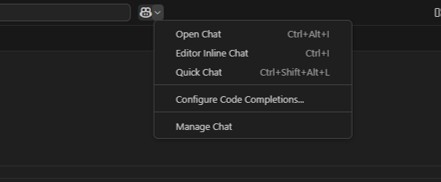
Review: Where the heck are all those buttons?
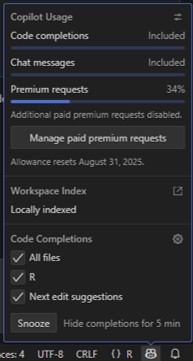
When enabled, grey “ghost text” will appear as you type. Accept the suggestion by pressing tab or select Enter/Return to ignore the suggestion. I often find the suggestion is 80% correct and it’s faster to accept an incorrect suggestion and then edit it to have the correct content than to do all the typing myself.
Features are similar in Rstudio/VS code/Positron. The official RStudio GitHub Copilot user’s guide is here: RStudio Copilot Guide.
This youtube video demos using Github Copilot in Rstudio.